Saturday, 25 February 2012

Download Google Chrome OS


Download Google Chrome OSThanks to Hexxeh, who tweaked the Google Chrome OS source code, the OS can be easily installed from a 2 or 4GB flash drive in a matter of minutes. Users simply need to create a bootable flash drive with the Google Chrome OS image on their current operating system. Instructions are going to be listed for users running a version of Windows, however on the Flow homepage there are more complete instructions for Mac and Linux distro users.
After you download Google Chrome OS, back up any important files on the related flash drive. The drive will be formatted and all files will be wiped clean (you have been warned).
First we begin by downloading all important files for the operation.
Step 1: Navigate to the Vanilla Chromium Build homepage and scroll all the way to the top of the version listing (latest build version).
Step 2: Click on the “Download USB Image (picture of a USB drive)” and the zipped OS image file should begin downloading. The file is 200MB+ and should take a while so go relax and come back in about 15-20 minutes.
Step 3: Once the Chromium OS image has completed downloading, we will also need to download the Windows Image Writer so that we can successfully create a bootable image on our flash drive. The Image Writer page can be found here, with the download link on the right hand side of the page (first green tab). This download won’t take long (less than 1 minute on high speed internet) so you might as well just wait until it’s done.
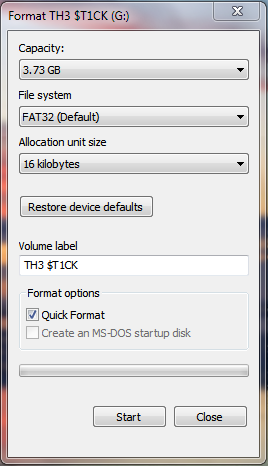
Step 4: Once everything has finished downloading we must format our flash drive. Simply insert the drive into a USB slot in your computer and wait for Windows to mount the drive. Then navigate to “Computer”, right click on the flash drive in the device list and select “format…”. The format menu will open, just click the “Start” button and Windows will automatically format your flash drive.
Step 5: Unzip the Image Writer file and open the Win32DiskImager program (Windows Vista, 7 and x64 bit users will need to right click and select the “Run as administrator” option). An error may, or may not, pop up when the program is starting. It’s referring to a floppy drive that is not installed on your machine, dismiss the error by selecting “Ok”.


Step 6: Unzip the Chrome OS .tar.gz image file you downloaded by using WinRAR or 7Zip and make sure the extracted files are in an easily navigable directory.
Step 7: In the Image Writer menu select the correct drive letter of your inserted flash drive. This can be checked easily by opening “Computer” or “My Computer”. Once the correct drive is selected, you must then select the blue folder icon and navigate to the Google Chrome OS image file in the browser window that pops up. If you have successfully selected the correct image it will show up in the address bar to the left of the open source icon.
Step 8: Double check the drive letter of your flash drive and then select “Write” after making sure. A warning will pop up indicating your drive may malfunction if you happen to select the wrong one, dismiss the warning message and the program should begin writing a bootable image to your flash drive.
Step 9: When the program has finished writing the image and displays “Done” in the bottom left corner you may then remove the flash drive and close the program.
Step 10: Reboot the machine and choose the USB thumb drive you just created as the boot partition. The computer will then boot into the Google Chrome OS Flow build.
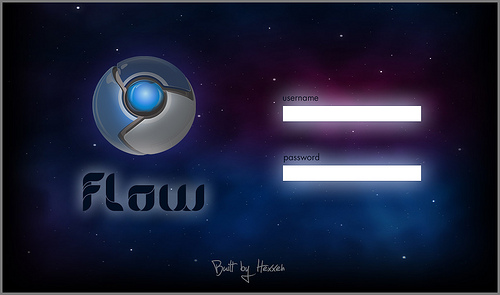
Step 11: The first time you login into the OS you will need to login using a common login name and password. The Login screen looks like the image at the top left, with the Google Chrome and Flow logos clearly evident.
Login: facepunch
Pass: facepunch
After the OS has started up simply login to a Gmail or email account. After you have successfully logged in, reboot the computer (press power off) and complete the steps again to boot into the Google Chrome OS. You should then be able to login to the OS using your Gmail account and password once it boots up. Netbook users are less fortunate, there is currently a bug preventing login – so just login using the “facepunch” info. All personal account information will be stored however so you won’t have to keep logging in after reboots.
Congratulations, now you know where to download Google Chrome OS and how to install it!
After you have completed installation and played around with the new Google Chrome OS let us know your thoughts, we have created a forum topic just for that purpose. Let us know of other Chrome OS builds out there, or any questions you may have pertaining to this one. The forum post is here.


Google Chrome OS – What Is It?


For those of you who aren’t aware of the upcoming Google Chrome OS, here’s a quick debriefing. Google has identified that users spend most of their time on a computer in a browser window (Internet Explorer, Firefox, Google Chrome, Safari). They believe that most of the excess programs and applications are used, much less often – enough so, that they don’t need to exist in an OS. They also believe that most average operating systems take an extended period of time to boot initially (no detesting that fact). Over time operating systems deteriorate in performance as more and more software is installed. Armed with all these aforementioned observations, Google has decided it would be beneficial to create an operating system that acts just as an internet browser. What that means is that every action performed on their upcoming OS will do so via the internet. The Google OS is titled the Chromium OS because it will obviously borrow from the design and function of Google’s Chrome internet browser.
In a quick introductory video the Google development team also revealed that most files including music, text, video and such will be stored server side. Meaning computers utilizing the Google OS will no longer need extending storage support. Hard drives will likely become a feature of the past for Google OS users as music, photos videos and content is stored via internet accessible servers. Is this necessarily the best idea to be drawn up- no, I would think not considering all the safety problems that could potentially arise, however the idea is certainly not to be taken lightly.
This will undoubtedly allow the community full customization and control over the form and function when pertaining to the OS. As most Linux users already know, Linux remains a highly customizable and highly open-source platform. It looks as though the Google Chromium OS will follow suit.
Now that Google has officially released Google Chromium OS to the public it’s time to get down and dirty and try it out. Of course there will be bugs and software issues, but that’s part of being one of the pioneers. Every bug found by a user and reported to the system developers, is another chance to OS perfection.
For the purpose of this tutorial on how to download Google Chrome OS (and how to install it), we are going to use the “Flow” Chromium OS build from Hexxeh, which can be downloaded here.


Windows 8 Features And Release Date


Windows, being one of the most used OS, brings great challenges for Microsoft to keep its users impressed in the next version of Windows.
Although Windows 7 has done exceptionally well since its release, Microsoft has been constantly working to make the next version of Windows a better one by further improving upon the existing features, and have added new impressive Windows 8 features along with a stunning UI.
Microsoft released the early version of Windows 8 on a prototype tablet last week. Those of you who would like to taste and experience the all new Windows 8, you can download the Developer Preview, which is currently in pre-beta version. The developer version shows off the current stage of the OS. It is available for free download, and comes in three different packages:
  • (1) 64-bit version – Only the OS
  • (2) 32-bit version – Only the OS
  • (3) 64-bit version with developer tools

Windows 8 Features

Windows 8 offers a number of new Windows 8 features from its all new UI to Windows App Store and improvised security features. Here’s a list of new features and improvements which will arrive with Windows 8:

Support for both x86 PCs and ARM tablets

Windows 8 is the first edition of Windows which will work on both ARM based tablets and traditional x86 (as well as x32 and x64) PCs based on ARM processors from Intel and AMD.
“Support for ARM-based chipsets, touch, and sensors makes Windows 8 work beautifully on your choice of a full spectrum of devices, such as 10-inch slates with all-day battery life, ultra-lightweight laptops, and powerful all-in-ones with 27-inch high-definition screens,” Microsoft contends, in a Windows 8 Guide distributed with Windows Developer Preview

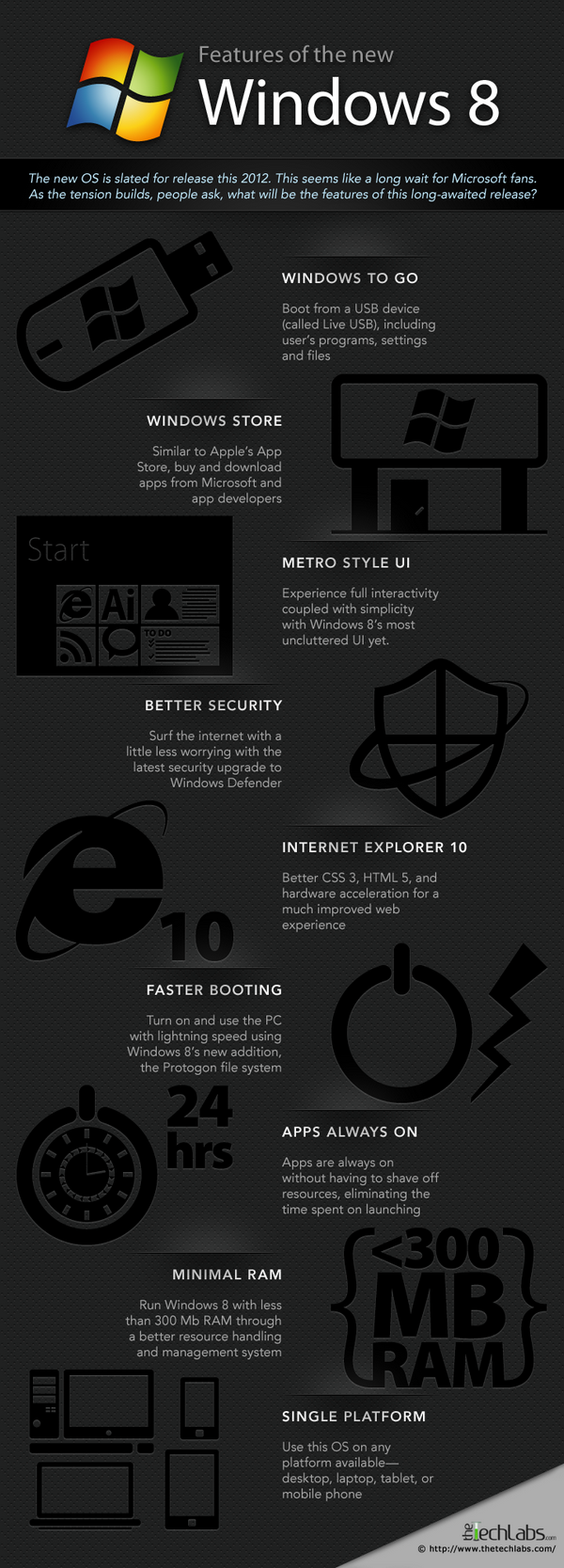
Windows To Go

The “Windows To Go” seems to be an exciting feature that basically allows Windows 8 to boot from a USB device (called as Live USB), including user’s programs, settings and files. The feature is designed to work with both USB 2.0 and USB 3.0, and on both legacy NIOS and UDFI firmware. However, Microsoft says that a user will not be able to “Hibernate” with this feature.
“Windows To Go is a new feature in Windows 8 that enables enterprise administrators to create USB drives containing complete, managed Windows images that users can use to boot and run Windows on any Windows 7 or Windows 8 capable computer. Windows To Go makes it possible for employees to use a managed device whether they work from home, a client office or in a free seating environment. This session will discuss Windows To Go, its hardware requirements and building compatible and complementary software.”
Another interesting thing about this feature is that, if the USB drive is removed, Windows will automatically freeze, but will continue to operate if the USB drive is inserted back in the next 60 seconds after removal.

Windows Store

To compete with Apple, Windows has confirmed the introduction of a Windows Store, similar to Mac App Store, which allows users to browse through Windows applications, while developers can publish their Metro-style apps on Windows 8 devices.
Few days back, Microsoft gave a strategic view of its app store, and gave a quick demo on how it works. Microsoft revealed that the Windows App Store will be the only place where users can access the Metro-styled apps. Here’s a quick demo that shows how users will be able to buy their apps:

Windows 8 User Interface

Speaking about the UI, Windows 8 certainly has got a mind blowing interactive UI, which has been extensively redesigned to a “Metro-style” design, which shows the most important information to you, embodies simplicity, and gives you full control over it. The UI is designed to provide a fluid and intuitive interaction and navigation with touch, or a mouse and keyboard.
Julie Larson-Green, Corporate Vice President, Windows who stated: “Everything that’s great about Windows 7, is better in Windows 8,” gave a quick hands on look at the Windows 8 user-interface. Here are some of the screenshots she released:
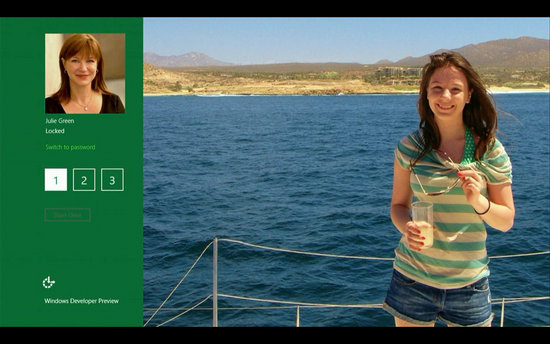
Windows Logon Screen – Unlike the traditional way of entering a password to unlock the screen, Windows 8 can be unlocked by just tapping on the right areas of the screen.
Windows 8 Features
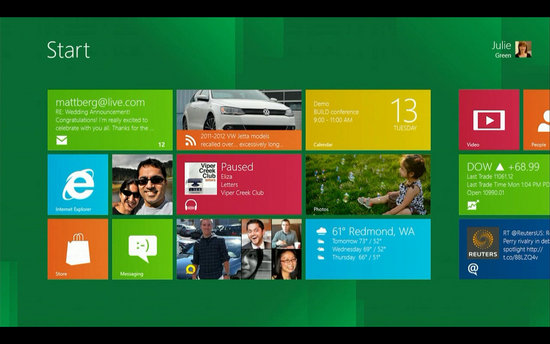
Windows 8 Start Screen – The Start screen is yet another impressive UI. The screen basically groups all your applications together, which you can easily drag and drop, or add new things.
Windows 8 Start Screen
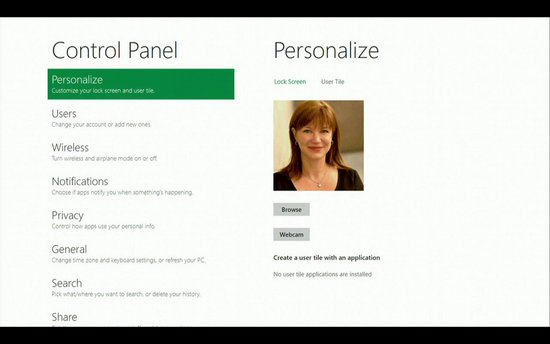
Control Panel
Windows 8 Release Date
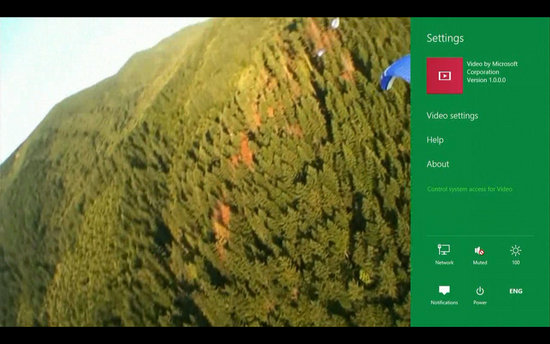
Playing Videos in Windows 8
Windows 8
Windows 8 Task Manager

Windows 8 Minimum System Requirements

It is reported that Windows 8 is expected to have the same system requirements as Windows 7, and will run on existing machines that run Windows 7. Here are the following minimum system requirements to run Windows 8:
Processor: 1GHz or faster 32-bit or 64-bit processor
RAM: 1GB (32-bit) or 2GB (64-bit)
HD Space: 16GB for 32-bit (or 20GB for 64-bit)

Windows 8 & Cloud Computing

It has been reported in the official Microsoft blog that Windows 8 will be tied to Microsoft’s SkyDrive, which will allow users to access their digitally stored data via Windows 8 on their computers, laptops, mobile devices… The industry’s leading cloud computing provider, Rackspace explains exactly how cloud computing works.

Windows 8 Bringing Kinect to Laptops?

Microsoft is also planning to build Kinect sensors into laptops. Prototypes have already been released, and were confirmed to be official. The sensors would be placed where the webcam is currently placed, and there could be an IR LED at the bottom of the screen. If Microsoft techs manage to drive the price of sensors down, it might even become a standard feature. There are also talks of miniaturized Kinect hardware for notebooks.

Windows 8 Release Date

We can expect Windows 8 to be launched sometime in mid-late 2012, however, it’s too early to predict the Windows 8 release date, since it is still under development. Nevertheless, the only question that haunts each and every one of us – Will Windows 8 Microsoft win the battle against Apple which it had lost several years back?


Thursday, 16 February 2012

Prom dresses


bridal wears

Hi friends this post is specially for girls since they love bridal wears there is no women in the world who don't love them to wear . These are some of my collections i think u girls love it i loved those designs. 


Monday, 13 February 2012

gifts to valentines

HI friends i wish every one happy valentines day .Its is most auspicious day for younger generation of course even  for the older who are still in love with their valentines(loves/lovers).
I wish who are truely in love very best of luck for  their future here are some of the gifts i would like to post to them even though they are post the heart that posted this to them is eagerly wishing them all the best.